
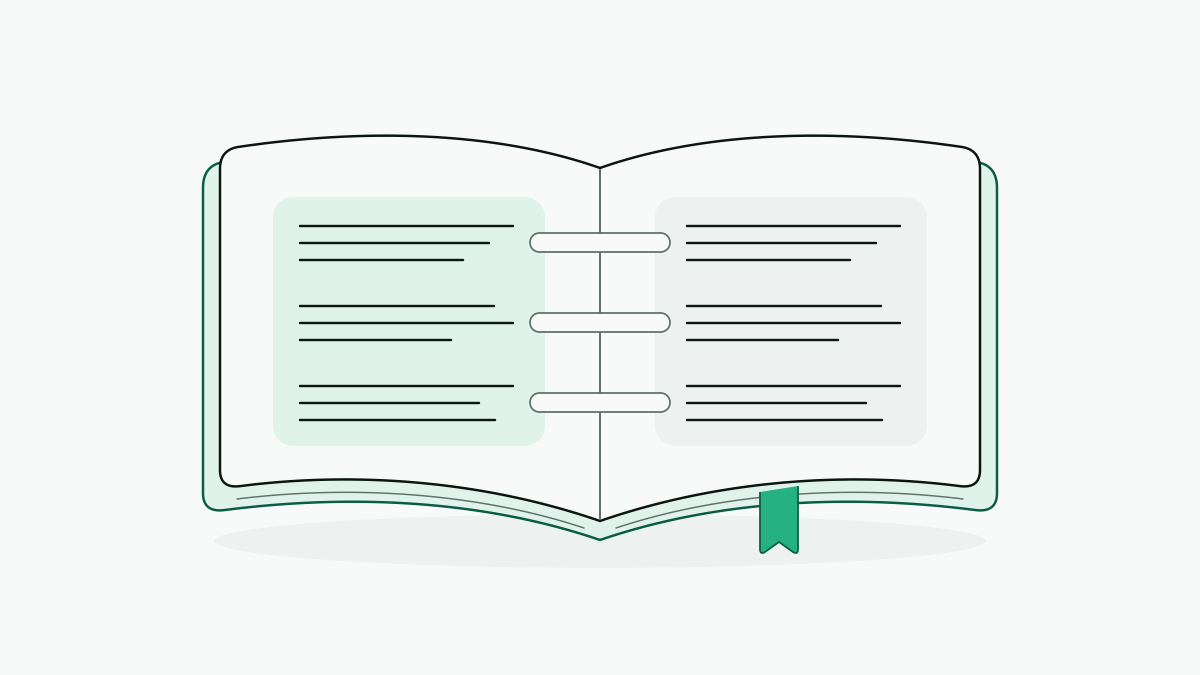
A bilingual document presents the same content in two languages, usually side by side or in alternating paragraphs. For a book chapter, we pair each original paragraph with its translation, then pick the format: an editable Word document, a fixed-layout PDF or an aligned EPUB reading view.
Below is a reusable two-column template with English on the left and Spanish on the right, a worked chapter to check it against, and a note on the one thing people most often mix up: reading a book aligned in an EPUB view and exporting a bilingual Word or PDF file are two separate jobs.
How a bilingual document comes together for a book
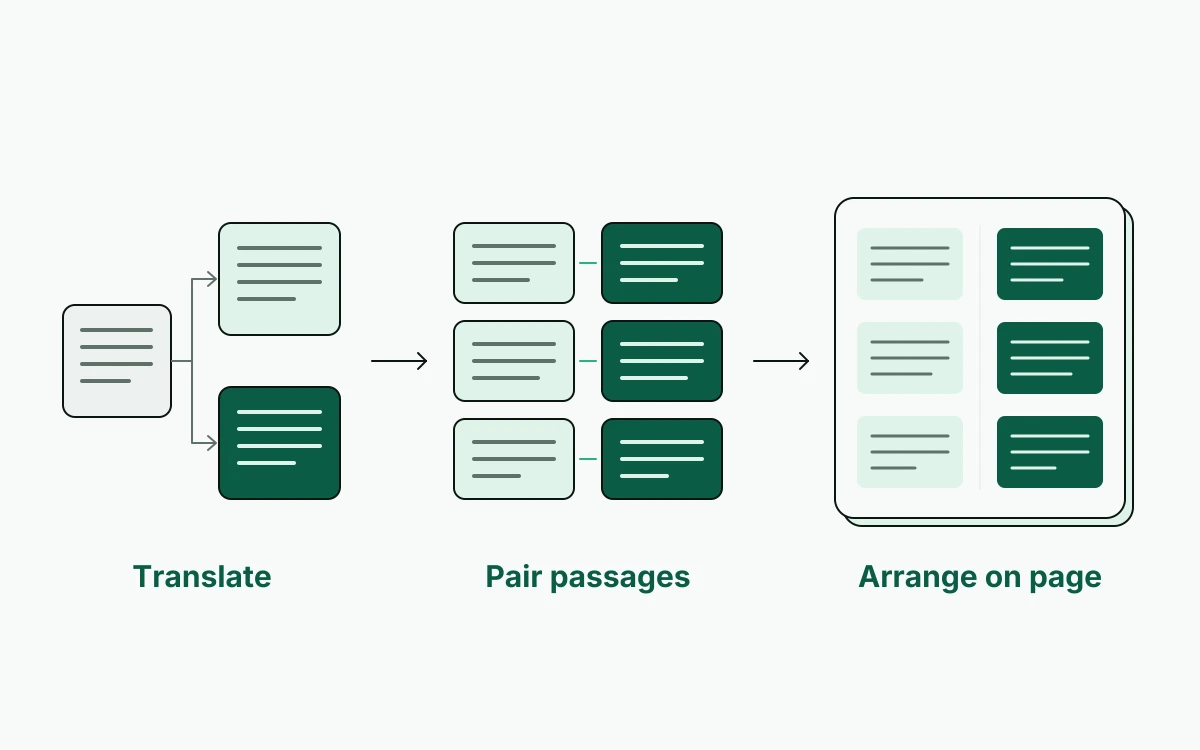
Turning a book into a two-language document takes three steps: translate the text, pair the matching passages, and lay them out on the page. Translation carries the meaning into the other language; pairing keeps each paragraph next to its counterpart, so you can edit, read or share them without losing the link between them.
Each format holds something different in place:
- Word keeps the chapter editable. A two-column table can hold one pair of paragraphs per row, so a revision in one row never pushes unrelated passages next to each other.
- PDF fixes the page arrangement for handoff. We check page breaks and text size before export, so the recipient doesn’t have to fix them.
- EPUB lets text reflow with screen size and font settings, so the layout follows the reader’s device rather than a fixed page.
In an aligned reading view, paragraph pairs can sit side by side for comparison or stacked, with the translation under the original. That setting changes how you read the pairs on screen; the look of an exported file is decided separately.
Create a side-by-side Word chapter step by step
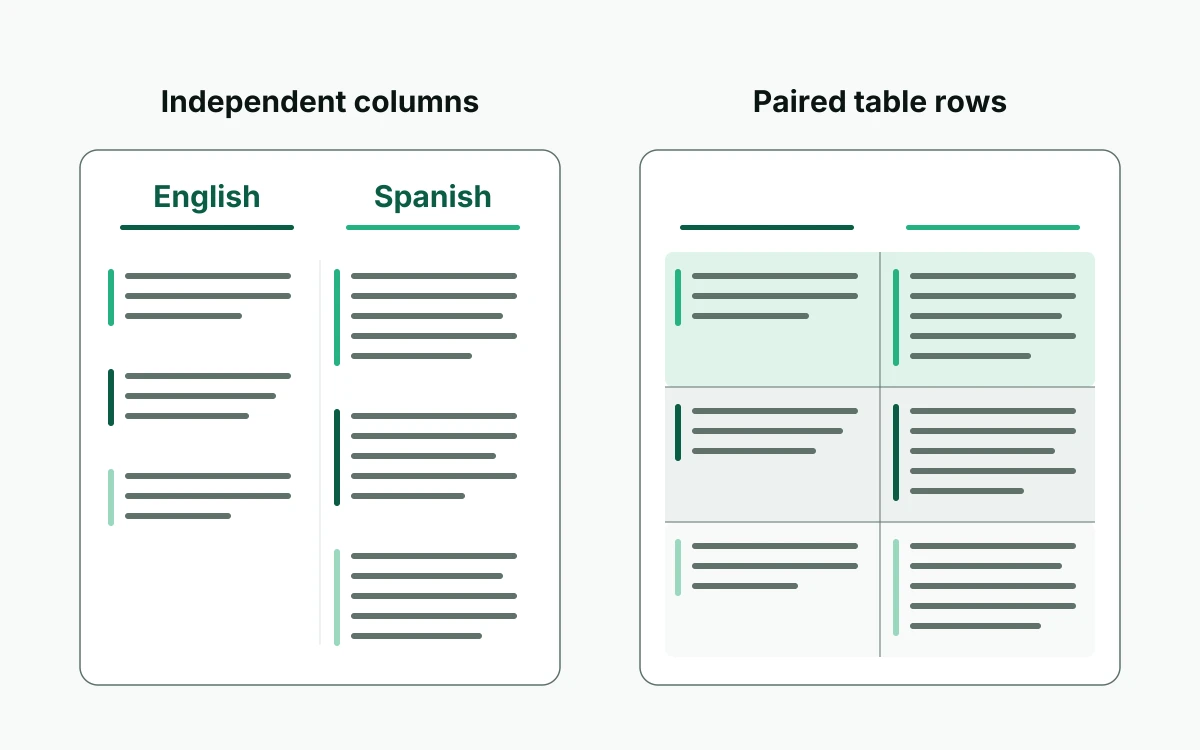
We build the editable chapter in a Word table, with each original paragraph beside its translation and each pair in its own row. Two free-flowing columns drift apart as soon as the Spanish runs longer than the English; rows keep them level.
- Duplicate
chapter.docxand name the working copychapter-bilingual.docx, so the original stays untouched. - Create a two-column table, with “English” at the top of the left column and “Spanish” on the right. The same structure works as a bilingual document template next time.
- Insert the original text, one English paragraph per left-hand cell, in the chapter’s order. Headings get rows of their own.
- Translate the chapter text, keeping the paragraph breaks visible in the draft so you can match passages without guessing.
- Pair the paragraphs by putting each Spanish paragraph in the right-hand cell beside its English source. Where the translation has merged two paragraphs, split it at the matching point.
- Review recurring names and terms against a glossary, in both columns: spelling, capitalization and any names that should stay untranslated.
- Save the Word document.
chapter-bilingual.docxis now the editable master for corrections and later revisions. - Export a PDF,
chapter-bilingual.pdf, for a fixed-page handoff, and keep the Word master alongside it. - Go through the PDF’s page breaks looking for clipped text, stranded headings and paragraph pairs split awkwardly across pages. Fix those in the Word master and export again.
An English–Spanish chapter, worked through
Our illustrative chapter.docx has English on the left and Spanish on the right, one matching paragraph per table row. If you’re translating a whole book in DualBook, convert a PDF, MOBI or Word file to EPUB first and look over the converted chapter headings and paragraph breaks before translating. For book.epub, we select Spanish as the translation language and side-by-side reading to compare the passage.
The Word table starts like this:
| English | Spanish |
|---|---|
| The door was open. | La puerta estaba abierta. |
Each cell holds a complete paragraph, even when that paragraph is a single sentence. The next pair goes in a new row, so the two columns can’t slide out of line.
The reading version uses these settings:
- File:
book.epub - Source language: English
- Translation language: Spanish
- Reading layout: side by side
DualBook translates an EPUB chapter by chapter and carries recurring names and terms into later chapters, so they stay consistent.
The meaning of the aligned text still needs a human read. Machine translation can take “break a leg” as a literal injury instead of a wish for good luck, so we check the intended meaning before the Spanish paragraph goes next to its English source.
Choose your output and check the chapter before sharing
Word is for continued editing, PDF for fixed pages and EPUB for reading. Before sharing, we check the paired text and the exported file, not only the translation.
Each kind of tool suits a different part of the job:
- General translation engines and chatbots are good for single passages and talking through wording; lining up a whole document is a different task.
- Browser extensions handle web text, and won’t build an editable bilingual chapter.
- Desktop converters prepare files rather than review translations, so look over the converted headings and paragraph breaks yourself.
- Whole-book translators suit chapter-by-chapter work and recurring terminology. Look at which reading views and export formats they actually offer.
Whether to pay comes down to how much work a tool saves and how much review it still needs; a paid result still gets the same accuracy check.
Before handing over the chapter, we work through this checklist:
- Look for missing or duplicated paragraph pairs, and for text paired with the wrong paragraph.
- Test the EPUB alignment in the reader your audience will use.
- Check Kindle on its own, since a side-by-side layout may not survive there.
- Keep audiobook output separate from document layout: an audiobook is something to listen to, not a bilingual page.
Before publishing or distributing a translation, ask the rights holder for permission unless the rights you hold already allow it.